Help & Setup
Here you'll find everything you need to set up VibeHit and solve problems.
Download: Browser warns
VibeHit is new. Chrome, Edge, and Firefox warn about programs that haven't been downloaded often yet – even if they're signed and clean. Here's how to download the file anyway:
Chrome
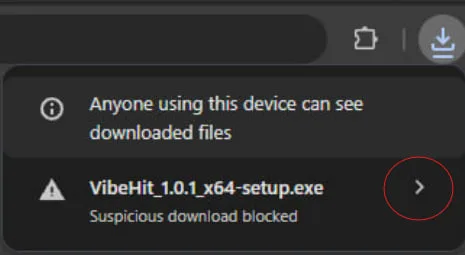
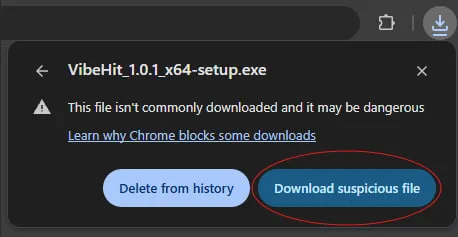
1. Click the "›" arrow next to the file in the download bar. 2. Then click "Keep anyway" or "Download suspicious file" – done.
Step 1: Click the arrow
Step 2: "Download suspicious file"
Edge
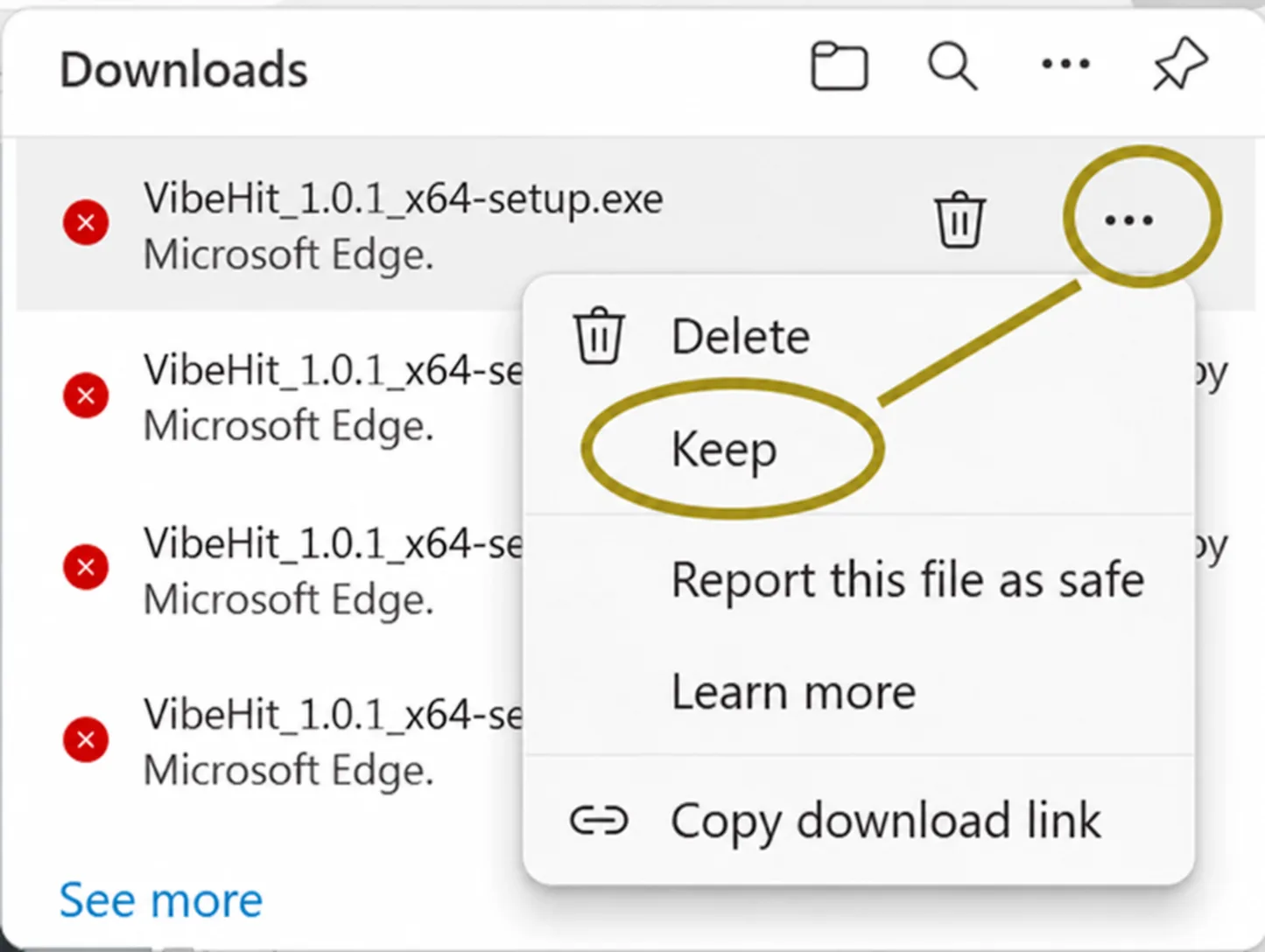
Click the download icon in the top right, then "…" next to the file → "Keep". If "Show more" still appears, click "Keep anyway" there.
Firefox
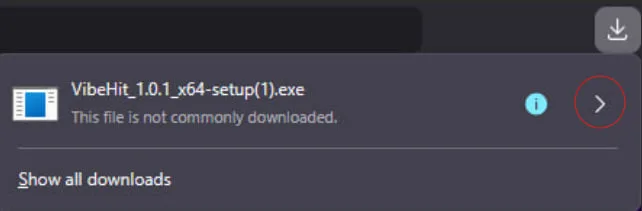
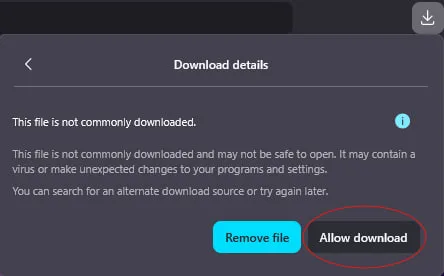
1. Click the "›" arrow next to the file in the download window. 2. Then click "Allow download".
Step 1: Click the arrow
Step 2: "Allow download"
Windows window "Windows protected your PC": click "More info" → "Run anyway".
The installer is digitally signed (Publisher: Pascal Kleefeld). You'll see this when Windows asks for permission – a good sign that everything's on the up and up.
Setup · Step 1
Welcome
VibeHit plays music, sounds, and voice effects into the game through your mic. Your friends hear it in voice chat as if you were playing it yourself.
VibeHit doesn't interfere with the game: no mods, nothing in the game folder, no risk from anti-cheat. It only works with Windows audio.
Setup takes about two minutes. You can skip it anytime and restart it later in the settings ("Start setup assistant").
Setup · Step 2
Virtual mic
For the game to hear your music, it needs a second, "virtual" microphone. VibeHit mixes your voice, music, and sounds there, and the game picks up this mic instead of your real one.
VibeHit uses VB-CABLE by VB-Audio for this – free and widely used.
Here's how:
1. Click "Set up virtual mic".
2. Windows will ask for permission once → "Yes".
3. Wait a moment. VibeHit will then automatically restore your headphones.
4. If VibeHit asks for it: restart Windows once.
Already using an audio mixer like Wave Link, Voicemeeter, SteelSeries Sonar, or MIXLINE? Then you don't need VB-CABLE – VibeHit will detect the mixer and show you what to set up there.
Click doesn't work? → Install VB-CABLE manually
Setup · Step 3
Your microphone
Select your real microphone here (headset, USB mic, etc.). VibeHit passes your voice along with the music to the game.
Use "Test mic" to check if it's coming through: say something, the bar should move. With headphones, you'll hear yourself the way others hear you.
Bar stays empty?
• Is the right mic selected? Try the others in the list.
• Does your headset have a mute switch (button or flip-up mic arm)?
• Windows settings → Privacy → Microphone: Is access allowed for desktop apps?
Don't select "CABLE Output" as your mic – that's the virtual mic VibeHit fills itself.
Setup · Step 4
Mic in game
The game needs to use the virtual mic "CABLE Output" – otherwise it only hears your voice, not the music.
GTA V / FiveM: VibeHit does this automatically. Once you're live and the game is running, VibeHit sets the mic to "CABLE Output" only for the game. Discord and everything else keep your real mic.
Majestic RP: Majestic has its own mic selection. Once in-game under F1 → Settings → Voice input, select "CABLE Output" as the mic. VibeHit shows you in the Live tab whether it matches.
Other game: In the game's audio or voice chat settings, select "CABLE Output" as the microphone.
Check: Go live → click "Test" in the Live tab. VibeHit sends a short tone through the cable and tells you if it comes through.
Setup · Step 5
Music
Where should the music come from? Two options, you can switch anytime (Live → Music source):
• From an app – e.g., Spotify or Chrome with YouTube. VibeHit only picks up the audio from this one app; everything else on your PC stays private.
• From VibeHit's playlists – music files from your PC or links (YouTube, SoundCloud, Spotify). A playlist is already set up for you in the "Playlists" tab: paste a link at the top → "Add". Tip: With a free YouTube API key (via Google Cloud for YouTube) you can import playlists with more than 15 tracks.
Want more playlists? Click "New playlist" on the left and type a name right away.
Setup · Done
Done
Click "Go live" – from now on, everything VibeHit plays goes into the game mic.
A few tips:
• Hotkeys work even in the middle of a game (music on/off, volume up, volume down, next song). You can assign them in the Live tab.
• Auto-ducking: when you speak, the music automatically gets quieter so you're easier to understand.
• Closing the window = VibeHit keeps running in the tray (bottom right by the clock). To fully quit, right-click the tray icon.
• Phone as remote control: top right "Phone & AFK" → more about this
Solving problems
Install VB-CABLE manually
Usually, one click on "Set up virtual mic" is enough in VibeHit. If that doesn't work (e.g., antivirus, no internet, work PC), you can also do it manually:
1. Download the Windows package at vb-cable.com.
2. Right-click the ZIP file → "Extract All" to unpack it.
3. In the extracted folder, right-click VBCABLE_Setup_x64.exe → "Run as administrator".
4. Click "Install Driver" and wait for the confirmation message.
5. Restart your PC.
VibeHit will then detect the cable on its own.
Can't hear anything afterward? This often happens right after installation → I don't hear anything
VB-CABLE is donationware by VB-Audio. If you like it, you can support the developers at vb-cable.com.
Solving problems
I can't hear anything anymore
This usually happens right after installing VB-CABLE: Windows set the virtual cable as the default output. Then all your PC audio goes into the cable instead of your headphones.
Solution: In VibeHit, click "Repair" in the yellow box "Can't hear anything?". Done.
Manually: Right-click the speaker icon in the bottom right → Sound settings → under Output, select your headphones or speakers – not "CABLE Input".
Still no music from VibeHit? In the Live tab under Audio routing → Headphones, select the correct device and raise the "Monitor" slider in the mixer.
Solving problems
Friends only hear my voice, no music
Then the game is still using your real mic instead of "CABLE Output". Check step by step:
1. Are you live? The big button in the Live tab needs to say "Live", not "Ready".
2. Majestic RP: In-game, F1 → Settings → Voice input → Microphone: "CABLE Output". VibeHit shows in the Live tab which mic Majestic is currently using.
3. Was GTA / FiveM already running before you went live? Restart the game once – Windows only applies the mic switch when the game starts.
4. Other game: select "CABLE Output" in its audio or voice chat settings.
5. Click "Test" in the Live tab. If the tone doesn't come through → click "Repair" in the yellow box or restart VibeHit.
Music cutting out?
• Push-to-talk: music only goes out while you hold the talk key. To get music without the key, enable "Activate with voice" in the game.
• Voice activation: if the music is quieter than the game's threshold, the game cuts it off. Lower the mic sensitivity in the game or turn up the music volume in VibeHit.
Solving problems
Microphone or audio device isn't responding
VibeHit showing "… not responding" or "Live without mic"? Your device driver is hanging – usually on your headset. This happens especially often with wireless headsets: the USB receiver is plugged in, but your headset is off or in standby.
VibeHit will still go live in that case – music and sounds play, but your voice is missing.
Try these steps in order:
1. Turn on your headset or wake it up briefly. Then stop and restart live in VibeHit.
2. Turn your device off and on in Windows briefly (the fastest way without restarting):
• Right-click the speaker icon in the bottom right → Sound settings
• Under Input, click your microphone (if "not responding" for the virtual mic: under Output, select "CABLE Input")
• Click "Don't allow" for audio, then click "Allow" again
• Then go live again in VibeHit.
3. Unplug and reconnect your USB receiver or headset.
4. Nothing helps: restart your PC.
Does this happen often? Then check your headset software (e.g. Corsair iCUE, SteelSeries GG, Razer Synapse) for updates – the driver hang usually comes from there, not from VibeHit.
Solving problems
Phone as remote control
Control the soundboard, music, voice effects, and volume from your phone – no app needed, right in the browser.
Here's how:
1. In VibeHit, click "Phone & AFK" at the top right.
2. Turn it on and scan the QR code with your phone camera.
3. The page opens in your phone's browser. Tip: add it as a bookmark or to your home screen.
Two modes:
• Wi-Fi only: Phone and PC need to be on the same Wi-Fi. The first time you turn it on, Windows will ask about the firewall → allow "Private networks".
• Anywhere (Pro): also works on the go over mobile data and with your phone's mic. Video, audio, and voice go encrypted directly between phone and PC.
Problems:
• "No connection" → Is VibeHit running on your PC? In Wi-Fi mode: Are both on the same Wi-Fi (not a guest network)?
• "Access expired" → Scan the QR code again in VibeHit.
• AFK image black → Launch the game in borderless window instead of fullscreen.
• Image/audio stops after a while → Keep your phone screen on (plug in a charging cable), otherwise the browser will pause.
Voice effects, voice changing, karaoke, and AFK monitoring are available with VibeHit Pro.
Still have questions?
Frequently asked questions
Can I get banned for this?
VibeHit doesn't change anything in the game and doesn't read anything from the game – to the game, it's just a microphone. However, whether music is allowed in voice chat is up to each server: check your server's rules.
Do I need Pro?
No. Music from files and apps, YouTube and Spotify links, the soundboard and custom sounds, auto-ducking, and the Wi-Fi phone remote are all free. Pro unlocks voice effects, voice changing, karaoke, the DJ deck, custom VST3 plugins, profiles, AFK monitoring, and the phone remote from anywhere.
Do others hear my entire PC audio too?
No. VibeHit only picks up the app you choose as your music source, plus playlists and the soundboard.
Discord suddenly can't hear me anymore / only hears me through VibeHit.
Then "CABLE Output" is set as the Windows default mic. VibeHit shows a notice for this with "Repair". VibeHit doesn't need this – it only switches the mic for the game.
How do I uninstall VibeHit?
Windows settings → Apps → VibeHit → Uninstall. VB-CABLE is a separate program by VB-Audio and stays installed; you can remove it via the setup from vb-cable.com ("Remove Driver").
Contact
Still stuck?
Write to us – we'll help you out.
Email: support@vibehit.live
Discord: discord.gg/pMn3Ubm8e
It helps to include your VibeHit version (Settings → "About VibeHit") and a screenshot of the Live tab.
Kontakt